UNITE offers multiple different ways of searching/filtering for a member(s).
TABLE OF CONTENTS
Roster View
Open the ( ) Roster Folder under Membership > Connect
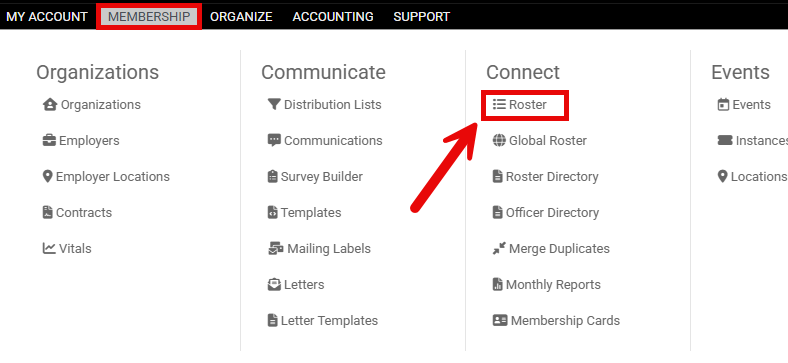
This will open you're member roster
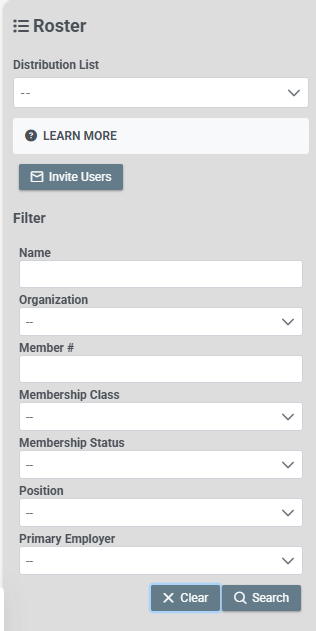
From here, you have multiple ways to search/filter for a member(s)
- Search by:
- Name
- Member #
- Filter by:
- Organization
- Membership class
- Membership Status
- Position
- Primary Employer
Another option is to use a distribution list to find a member(s)
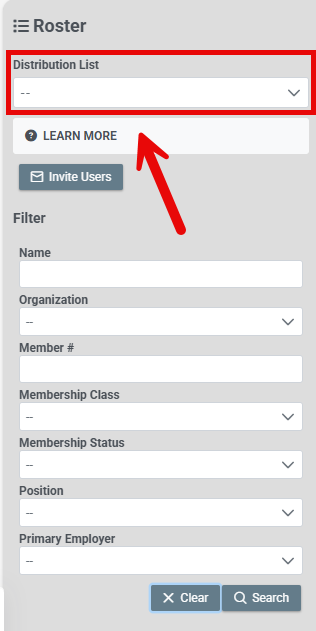
A distribution list can be used to give by a selection of members based on a predetermined criteria. Link to how to create a distribution list below.
Grid View
If a more detailed search is needed, click on the Grid View button in the top right.

Searching in this view will give you more options on what can be searched and showed as a result.

From the Grid View, you can sort any column by clicking on it.
Grid View also works like the distribution list, you can add and remove filters to help narrow down your search.
- Where you can set the criteria for your filter
- See and remove filters created
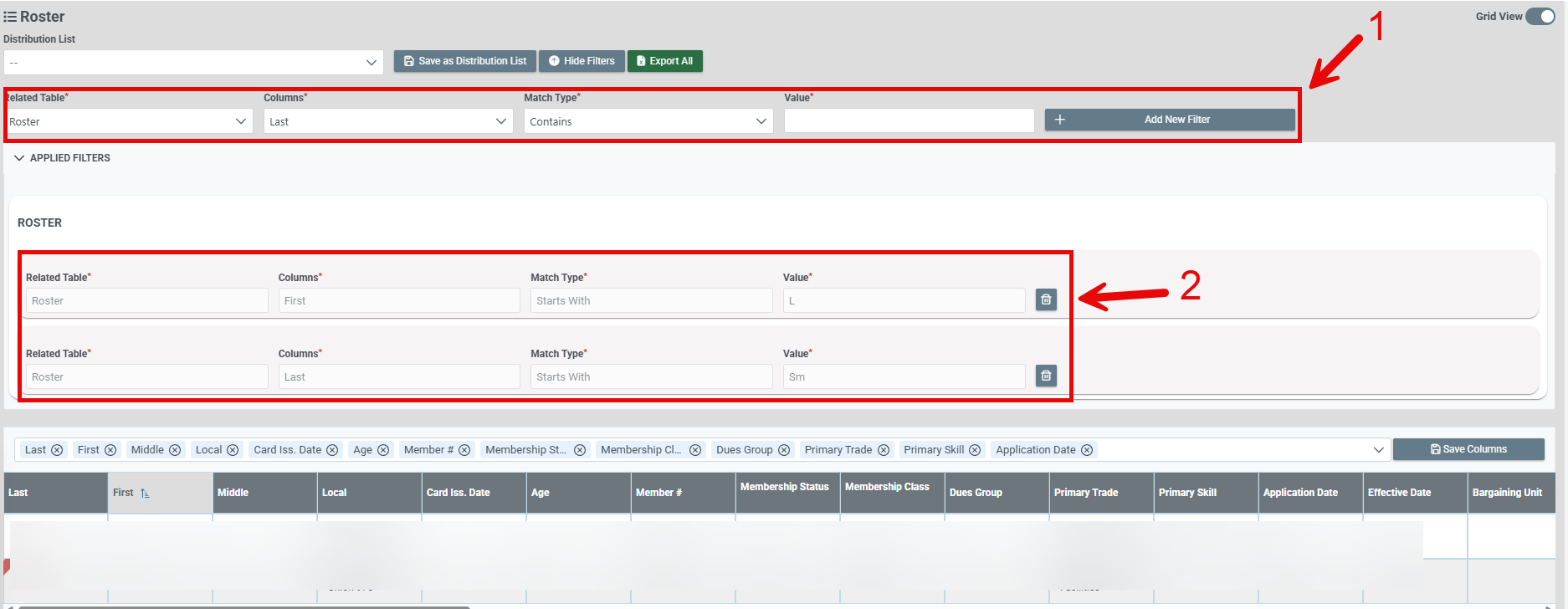
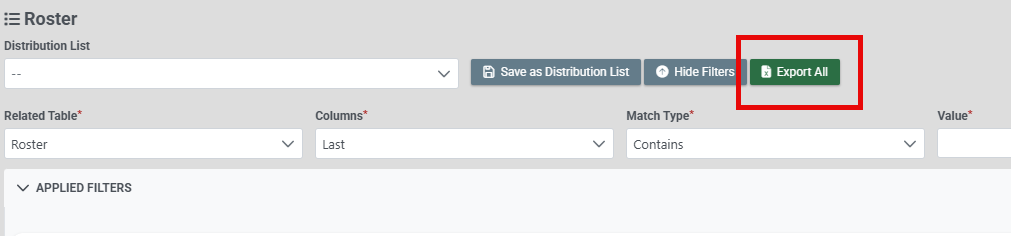
Any results found by the search can be exported to excel, but clicking the Export All button.
Was this article helpful?
That’s Great!
Thank you for your feedback
Sorry! We couldn't be helpful
Thank you for your feedback
Feedback sent
We appreciate your effort and will try to fix the article